
How to view AI agent conversations
The Conversations section is used to view real conversations between the AI agent and customers. It helps not only to read the chat, but also to monitor answer quality, notice weak points, and understand what should be improved in the knowledge base, skills, or AI agent settings.
Why view conversations
- Check the quality of real AI agent answers.
- See recurring customer questions.
- Notice where answers become too generic.
- Understand where the knowledge base is lacking.
- Find situations where the AI agent does not bring the conversation to the desired result.
What you see in the conversation list
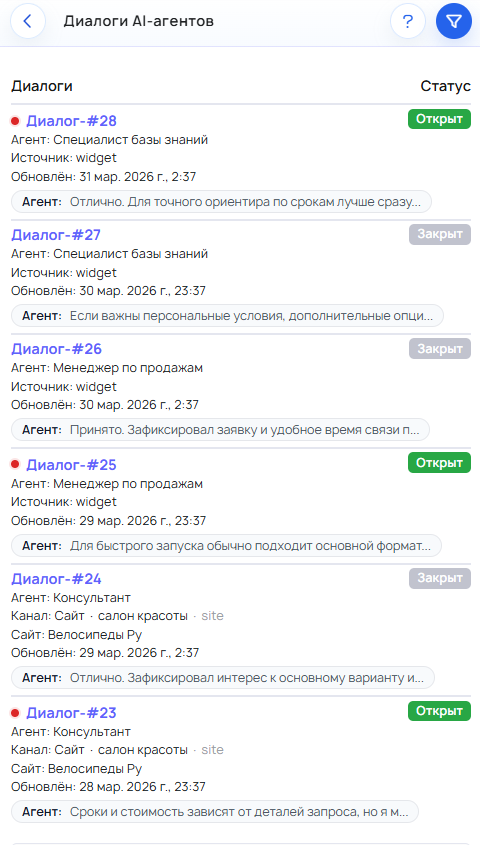
In the conversation list, you can quickly assess which conversations need attention. Usually you can see:
- the conversation itself;
- the channel or source;
- the time of the last message;
- the last message;
- the status;
- whether the conversation is unread.
This is enough to understand which conversations are new, which should be opened first, and where the communication took place.
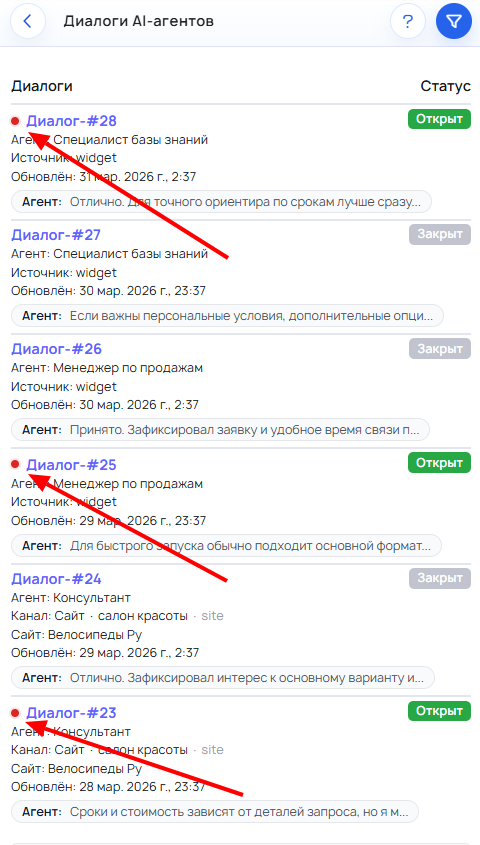
How to find unread conversations
First, pay attention to unread conversations. They help you quickly spot new messages and not miss chats that appeared recently.
If there are many conversations, it is convenient to open unread ones first and then move on to the rest.
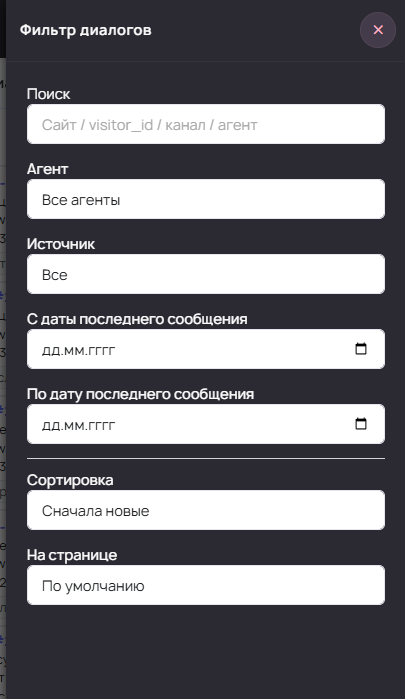
How to find the conversation you need
- Open the Conversations section.
- Use search, filters, and sorting.
- Filter conversations by AI agent, source, or date.
- If needed, find a conversation by text.
- Open the required conversation in full.
If there are already many conversations, it is better to use filters right away instead of searching manually.
The section includes filters by AI agent, source, and date, as well as search and sorting.
How to open and read a conversation
After opening a conversation, you can see the full chat: the customer’s messages and the AI agent’s replies. You can also view the basic context of the conversation, such as the source and communication channel.
This helps you evaluate not just a single answer, but the whole flow of the conversation: what the customer asked, how the AI agent replied, and what the chat led to.
What to look at first
- Did the AI agent understand the customer’s question.
- Did it answer clearly and on point.
- Did it avoid becoming too generic.
- Did it avoid asking unnecessary clarification questions.
- Did the conversation reach the desired result.
For example, if a customer wanted to book an appointment but the conversation ended with only general replies, that is already a useful signal to check the settings.
How to spot issues from conversations
If the AI agent answers too vaguely, check whether it has enough materials in the knowledge base.
If the AI agent does not bring the conversation to action, for example does not help submit a request, book an appointment, or move to the next step, check the required skill and its settings.
If the answers do not sound right, for example too dry, vague, or with the wrong emphasis, check the AI agent instructions and communication style.
What to do after reviewing conversations
- Add missing materials to the knowledge base.
- Update the AI agent instructions.
- Enable or reconfigure the required skill.
- Simplify or improve the chat’s first screen.
- Check whether the same weak answers keep repeating.
This makes the conversations section not an archive, but a tool for improving the AI agent.
What not to confuse
- Viewing conversations is not the same as manual messaging on behalf of an operator. This section is primarily for control and analysis.
- The last message is not the whole picture. It is often useful to open the full conversation and review the entire chat.
- A problem in the reply is not always a problem with the AI agent itself. The cause may be in the knowledge base, a skill, or more precise settings.